
How to use the magnifier in Windows 11 to zoom in on content

Hi welcome to my series on how to start loving Windows 11 now that it's time for Windows 10 to say bye 👋🏻. It was a long time ago since my last post but that does not end the features and today it is all about the magnifier🔍.
In my 12th blog post in my Windows 11 series I wanted to share how to use the magnifier in Windows 11 to zoom in on content! The magnifier is a little bit like a light ZoomIt making it possible to zoom in during presentations and demos, but also a helpful tool for accessibility needs. Let's dive into what you can do and how to use it.

What is it?
Let's start with why you should use it? The main purpose of the magnifier is to make Windows more accessible by making it easier to see on your screen. The purpose can both be for your own sake but also helpful during demos and presentations to make sure people are seeing the tiny button on which you are clicking on. Besides zooming in there is also a reading feature which reads the text on your screen.

How to use the magnifier in Windows 11 to zoom in on content and other available features
You reach the magnifier by pressing Windows button AND +. You can also reach it by searching for magnifier. When you use this short command you will be able to zoom on your screen, you zoom in by WIN AND + and zoom out by WIN AND -. When moving around your mouse the zoom will follow making it easy to use. When you are using the magnifier the pop up window will stay there, if you want to use the magnifier for presentations you can minimize the window but still use the features.
The other part of the magnifier is the reading functionality. By clicking the play button a voice will start reading what is showing on the screen. I find the easiest way to use in apps where you actually can click in a sentence (Loop, Word, a website with text e.g.), you click in the beginning of a sentence and then clicking the play button. You can paus and play, and also skip chapter. In the settings you will decide what voice you want it to use.

By clicking the cogwheel you will navigate to a set of settings:
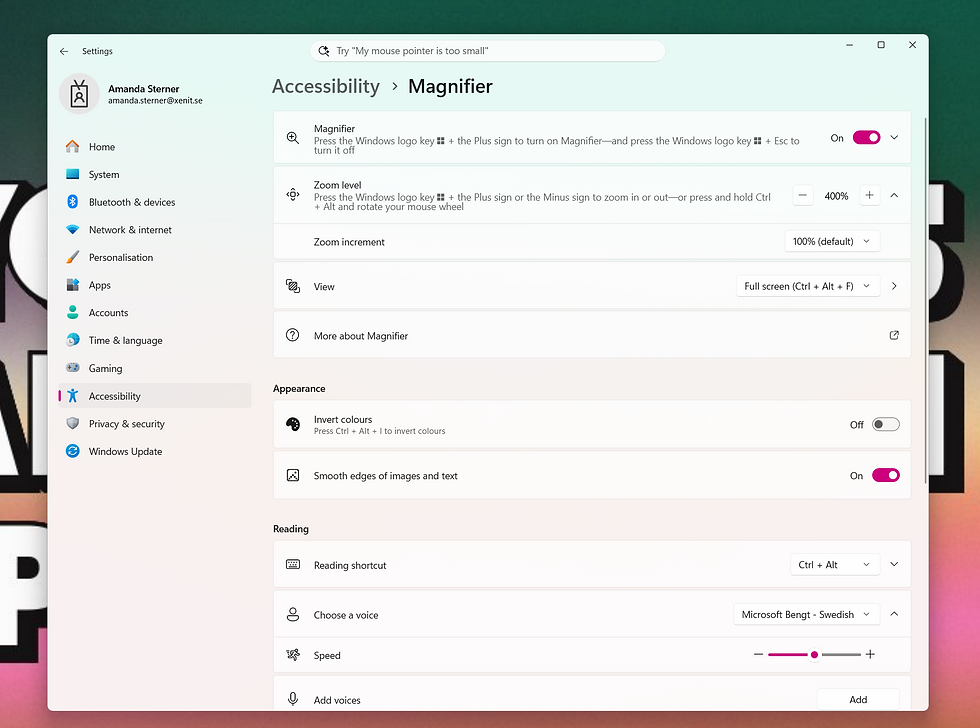
Making sure the magnifier is turned on
Zoom level and zoom increment which decides how much to zoom, the default is 100% as start and increment
There are three views, full screen, docked and lens. Full screen zooms your full screen, lens creates a little square that only zooms and docks will give a docked window zooming in keeping the rest as is. The modes depends on what you want to achieve, for demos I would go with full screen or lens, for a more consistent use I would pick docked.
For reading settings you can decide on your reading short cut while the magnifier is open, choose a voice and the speed of the voice.
You might notice that the magnifier settings is under the accessibility settings and that is correct, the magnifier is just one of the accessibility features available in Windows 11. These features are helpful for people with low vision, I do have glasses and maybe features these will be a must for me in the future.
My thoughts
I've said for 5+ years now that this is the year I'm starting to zoom during my demos, and now I finally feel yes lets do it. I love built in things 🤓🤓. I also love tech being accessible by all.
✨✨✨
Others posts in my Windows 11 series:


The way you explained adjusting the zoom increments in the Windows 11 Magnifier really cleared up some confusion I had. It’s great to know I can customize the zoom level precisely when reviewing detailed stats for my fantasy football drafts. 38-0-0 serie a
My partner swears by ambient music for long stretches — lately it's been build a hooper game
My partner swears by ambient music for long stretches — lately it's been sky sharp
We also keep the mood right with background music on long drives — been using microsoft office end of life
One thing that changes the vibe on road trips is background music — we've been on online harmonium