
Microsoft To Do and Power Automate?

Updated: May 2, 2022
This blog is for learning, not only for the people who reads it but also for the people writing it – well me. So, I was thinking – how could I take my To Doingto the next level 🤔? I thought this blog post would follow along my vision for what I could do as a next step with Microsoft To Do together with Power Automate, let’s see where it ends up.
Power Automate is for helping with things we do over and over again, but I want to try it for a personal things first. You know baby steps.
If you ever heard me talk about what I’m missing in Microsoft Teams you’d probably heard me talk about the struggle with having several accounts in Microsoft Teams that I use daily. Let’s see if Microsoft To Do can help with that with the beautiful help of Power Automate.
This is what I’d like to achieve:
Every time a channel or I am mentioned in a channel in another tenant a new To Do task will be added with a friendly message saying something like “Hey Amanda have a look in your other tenant”
Let’s see if we can make it happen!
Step 1 – What’s available out of the box?
There are a lot of helpful triggers available for creating flows in Power Automate. A trigger is something that triggers a flow to start in Power Automate.
I want a trigger that can see if:
I’ve been mentioned
A channel or a team I’m a member of has been mentioned
These are the available trigger for Microsoft Teams at the moment:

Oh 🤷🏻♀️ nothing matching what I want to do, time to move to step 2.
Step 2 – Let’s try to create my own trigger
We have a lot of out of the box triggers but none that matches my needs, well fantastic that you could create your own triggers. Only question is how easy is this for a non-developer as me?
Let’s see what Google says, sorry Bing 😉. After reading the result I realized this isn’t for me. Back to the drawing table.
Step 3 – Re-thinking my vision
I often say reach for the stars, and you’ll reach higher than if you just reached for a mountain top. This time my reaching needed some tuning to be more reachable.
My new vision will therefore be:
Every time I am mentioned in a channel in another tenant a new To Do task will be added with a friendly message saying something like “Hey Amanda have a look in your other tenant”
I’ll create a new flow in Power Automate. I’ll pick Automated – from blank. I think there might be a template doing what I’ll try but let’s do it from the start.

I’ll search for Microsoft Teams to avoid scrolling forever and choose the trigger When I am mentioned in a channel message.

Let’s create!
A flow has been created with our pre-populated trigger 😊.

Step 4 – Let’s make sure the connections are correct
First things first – let’s make sure the connections are correct. As the main scenario here is, I’m logged in to tenant X but want to make sure I don’t miss anything in tenant Y I first need to make sure I have my different connections ready.
You could either click … on the trigger and have a look under My connections, if your email isn’t there you need to add it by clicking +Add new connection

You can also find all of your connections under Data > Connections in the left side navigation. There you can make sure all connections are working, maybe if you’ve changed your password somewhere.

I want this flow to be triggered when I get mentioned in tenant X, so I’ll verify that the correct tenant is chosen. The chosen connection will have a check next to it.

Step 5 – Let’s add another step
Another way to verify is that if you don’t get the correct teams and channels in the drop-down, you’re in the wrong place. Because the next step is to decide in what channel should be triggered.

This is the other blocker I had, I can only pick one team AND channel at a time. I’d like to at least be able to pick a team without a specific channel. But hey that’s how it is.
Now add the next step – Adding a task in Microsoft To Do!

I picked Add a to-do (V2).
Step 6 – Finetune your task
Now we can to some fun things to the task 😊. Begin with making sure the connection is correct, for this step I’ll change to tenant Y. Click ... on each step to have a look at the connections.
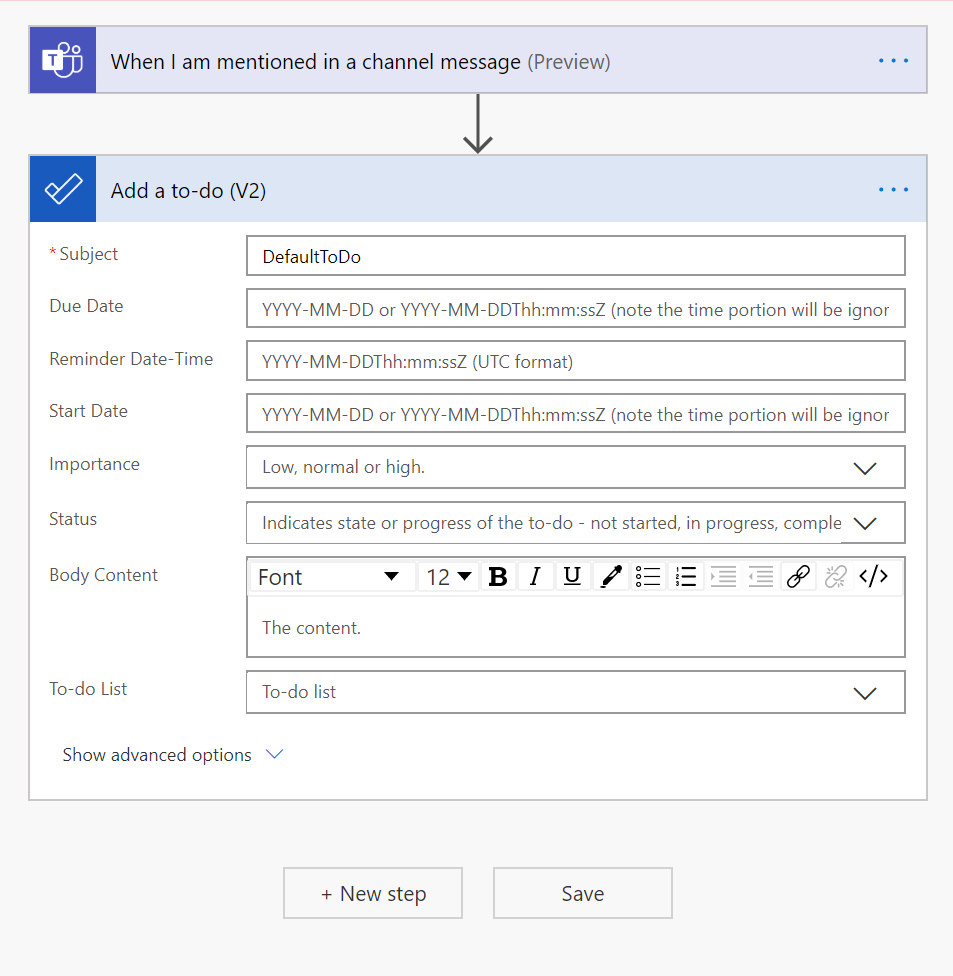
Something I think is fun is the possibility to add dynamic content – this will make the task more interesting. Like WHO sent the message, WHEN was it sent e.g. Click the field you want to edit and the option to add dynamic content will appear.

I didn’t add a lot, I created a specific list in my To Do to show all tasks from this flow, and I added who @ mention me and what they said.

Step 7 – Let’s test this, is it working?!
Now the flow is ready to test, save and let’s go! Let’s get someone to mention me in tenant X and see what happens with my flow.

Wiho it works, it’s showing that I’ve been mentioned in my other tenant without me having to go there to look. The final result is that a new task is added in my To Do list.

If you want to read more about Microsoft To Do and what you can do, have a look at my blog post about that 🤓.
Step 8 – We’re ready ✨
Now you think but come on this won’t help you to know what’s going on? Well NAH I actually have a look at my To-Do quite often, so I’ll manage. But you have to do what’s best for you 😊. If you like email the built in notifications should do, but I don't like email 🤭.


Nice Transparity
I had the opportunity to work with SoftDoes on softdoes.com for a custom software development project, and the experience was exceptional. Their team demonstrated a deep understanding of our requirements and delivered a solution that exceeded our expectations. The software is not only user-friendly but also highly efficient, streamlining our operations significantly. Communication throughout the process was clear and timely, making collaboration seamless. I highly recommend SoftDoes for anyone seeking reliable and innovative software solutions.
After stepping away from online gaming for a while, I decided to give the 1win app a try via https://1win-app.pk/. What hooked me wasn’t instant big wins, but how seamless the platform feels — games load quickly, navigation is smooth, and the overall interface is distraction-free. I started with small bets, trying a mix of live tables and medium-volatility slots, and quickly realized that patience enhances the experience. The live tables provide a controlled thrill, while slots keep things steady. The main lesson I got is that your mindset shapes the whole session: when you play with focus and intention, even routine spins feel satisfying, and the whole experience becomes genuinely enjoyable.
Another key takeaway is the desire to improve daily workflow efficiency. The struggle with managing multiple Geometry dash games Microsoft Teams accounts highlights a common productivity challenge—context switching and account fragmentation. Rather than accepting the inconvenience, the writer is exploring whether Microsoft To Do, supported by automation, can act as a central organizational hub. This shows initiative and problem-solving thinking.